> For the complete documentation index, see [llms.txt](https://faq.wanttopay.net/wanttopay-app/llms.txt). Markdown versions of documentation pages are available by appending `.md` to page URLs; this page is available as [Markdown](https://faq.wanttopay.net/wanttopay-app/english/instrukcii/podklyuchenie-apple-pay-dlya-smart-i-pro.md).
# Apple Pay setup for Smart and Pro
A card with the Smart tariff or Smart is added to Apple Wallet under the US region, as well as Hong Kong (HK). First, you need to change the country to the USA. When linking a virtual card, make sure the location is selected according to the card's billing address — Hong Kong or the USA.
## Step 1
### Adding a card
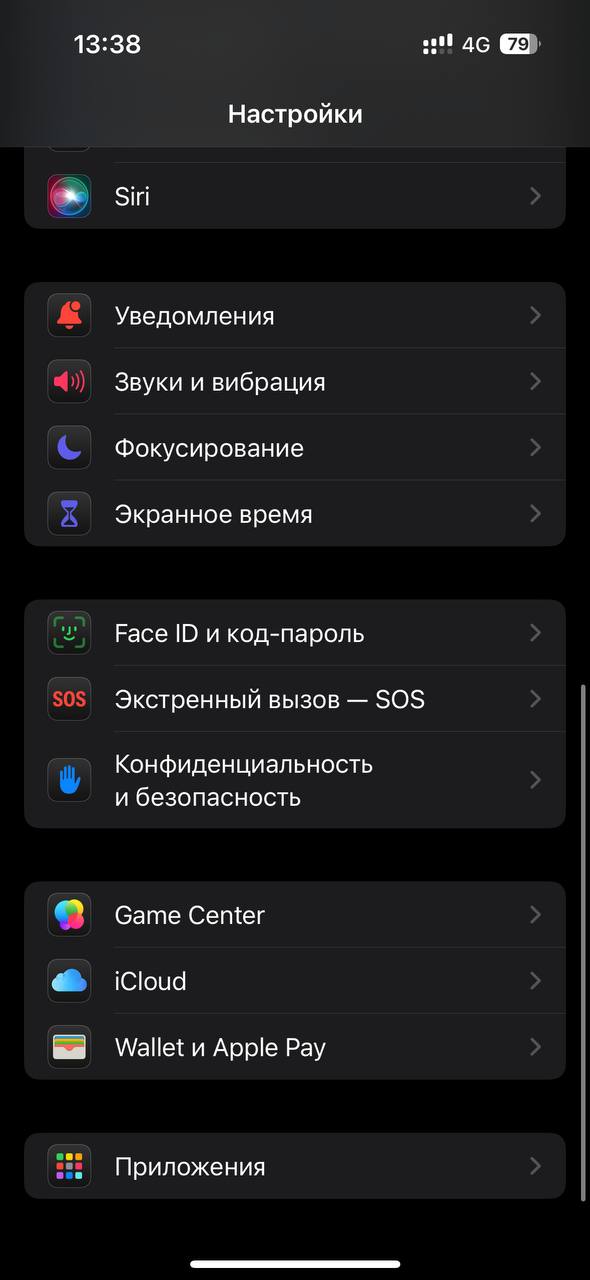
* Open the app Settings
* Tap Wallet and Apple Pay
* Tap Add a card in the menu Payment cards
* Tap Debit or credit card
* Tap Continue
* Tap Enter card details manually
* Enter First and last name in Latin letters and card number and press next
* Enter Expiration date and security code press next
* In the Terms of Use section, click accept
A common mistake is entering the card expiration date incorrectly; it must be in the format 01/2024, that is, the year is written in full and consists of 4 digits.
{% hint style="danger" %}
Important! Contactless payment will work only in countries where there are no restrictions on using Apple Pay.
{% endhint %}
## Step 2
### Card verification
* Select Email in the section Card verification
* Tap Next
* In the section Wallet and Apple Pay press Verification
* Enter verification code and click Next
* Congratulations, your card is activated
{% hint style="info" %}
The confirmation code will arrive via the @WantToPayBot chatbot within a few minutes. If that doesn't happen, repeat the verification process or contact [the service support team](https://telegram.me/WantToPaySupportBot).
{% endhint %}
---
# Agent Instructions
This documentation is published with GitBook. GitBook is the documentation platform designed so that both humans and AI agents can read, navigate, and reason over technical content effectively. Learn more at gitbook.com.
## Querying This Documentation
If you need additional information that is not directly available in this page, you can query the documentation dynamically by asking a question.
Perform an HTTP GET request on the current page URL with the `ask` query parameter, and the optional `goal` query parameter:
```
GET https://faq.wanttopay.net/wanttopay-app/english/instrukcii/podklyuchenie-apple-pay-dlya-smart-i-pro.md?ask=&goal=
```
`ask` is the immediate question: it should be specific, self-contained, and written in natural language.
`goal` is optional and describes the broader end goal you are ultimately trying to accomplish on behalf of the user. GitBook uses it to tailor the answer towards what is most useful for that goal.
The response will contain a direct answer to the question and relevant excerpts and sources from the documentation.
Use this mechanism when the answer is not explicitly present in the current page, you need clarification or additional context, or you want to retrieve related documentation sections.